
Credits & Tokens
Every conversation on campusGenAI consumes tokens, which draw down your credit balance. You don’t need to manage this actively, but understanding the mechanics helps you pick the right model and recognize why some conversations feel “heavier” than others.
Credits
Section titled “Credits”Credits are your usage budget on the platform. Each user has a credit allocation, configured by your institution’s administrator.
Refills happen automatically every night around 2:15 AM in your deployment’s time zone. Each night your balance is reset back up to your full allocation. Credits do not stack: any unused balance from the previous day does not carry over and accumulate, so you start each day with the same fresh allocation rather than a growing surplus.
Tokens
Section titled “Tokens”Tokens are the unit AI models use to measure language. Every word (or part of a word) in your prompts, any files you attach, and the model’s response back to you are all counted in tokens.
- 1 token ≈ 4 characters of English text
- A short question uses a few hundred tokens
- A long document summary can use tens of thousands
Each message in the chat shows its token count, so you can see in real time how much a conversation is using.
How credits and tokens connect
Section titled “How credits and tokens connect”When a model processes your conversation, it uses tokens — and your credit balance is charged to cover that cost. More tokens used means more credits spent, but the credit-to-token ratio isn’t fixed. Two factors drive it:
| Factor | Effect on credit usage |
|---|---|
| Model choice | More powerful models cost more credits per token. See Model Comparison for relative cost. |
| Prompt complexity | Long messages, attached files, and detailed responses all generate more tokens. |
A quick chat with a standard model uses a small fraction of a daily allocation. Running a lengthy research summary through a premium model uses noticeably more — though normal use rarely exhausts a daily limit.
Checking your balance
Section titled “Checking your balance”- Click your profile picture in the bottom-left corner of the sidebar.
- Select Settings.
- Open the Balance tab. Your current balance and the Next Refill time are shown there.
The Next Refill line shows when your balance will next be topped up. Refills run automatically overnight, so there’s nothing you need to do — check back the next morning and your balance will already be reset to your full allocation.
Storage usage
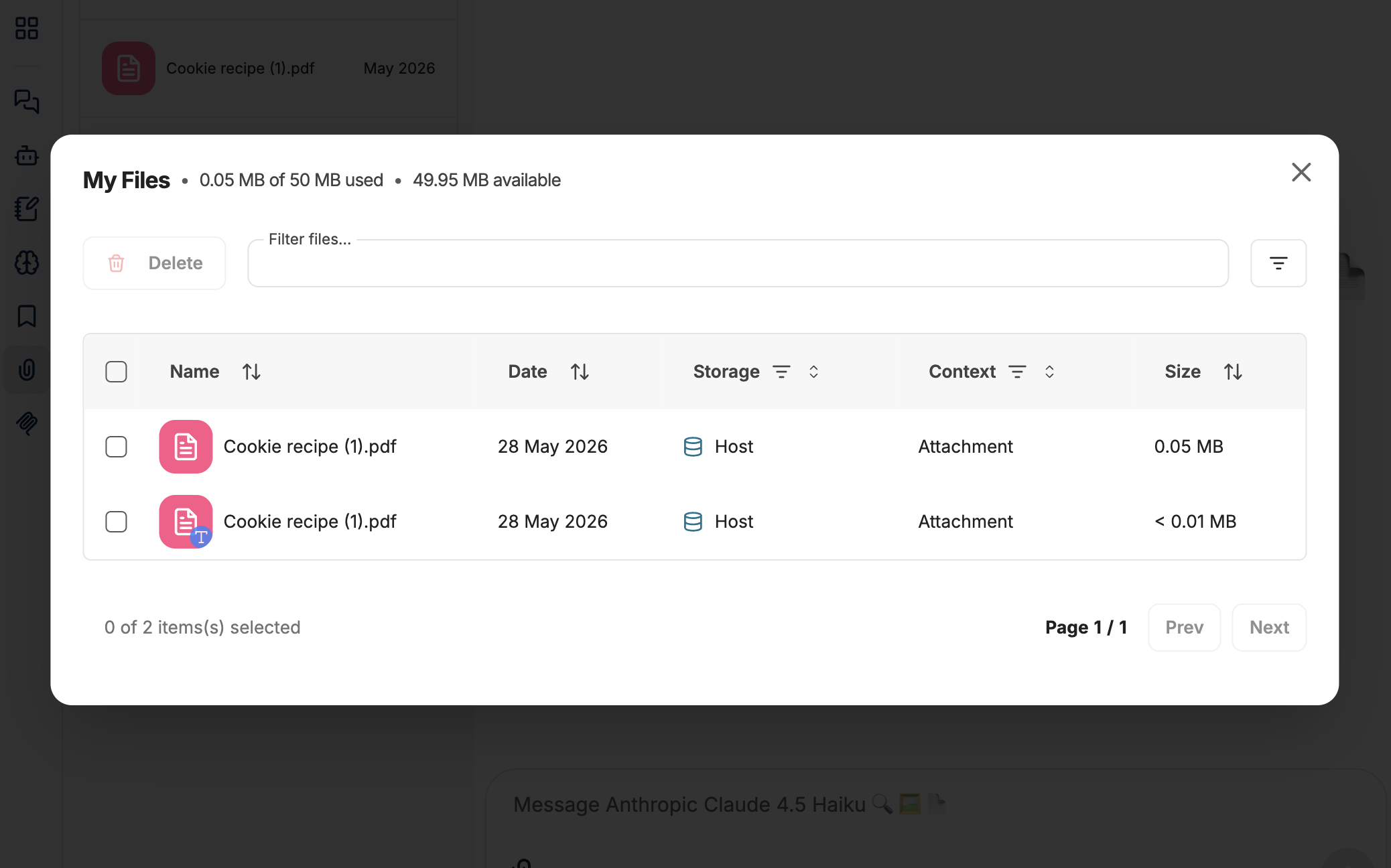
Section titled “Storage usage”Some deployments also track file storage alongside credits. View your storage limit status by going to Attach Files in the left sidebar and then selecting Manage Files.
Choosing models for cost
Section titled “Choosing models for cost”For routine drafting, summarizing, or brainstorming, a lighter model is usually sufficient and noticeably cheaper. Save the premium models for tasks that genuinely need them — code reasoning, long-document analysis, complex multi-step instructions. The Model Comparison page lays out the tradeoffs.
If you receive a low-balance notification, you may be able to request additional credits from your institution’s administrator.
- Credit limits, refill schedules, and storage quotas are all set by your institution’s administrator and may differ from the defaults described here.
- Regardless of how many credits or tokens you use, your conversations are not used to train AI models. See Privacy & Data for details.
Need help?
Section titled “Need help?”- Get help: Contact us
- About campusGenAI: Main site
Your interface may look slightly different depending on your institution’s deployment.